Meetings and the Meeting Workspace
This page covers the meetings area of the web app: the list of your upcoming and past calls, the per-meeting workspace where Alpheous prepares you before each conversation, and the follow-up form that turns a quick recap into a compliance-checked draft.
Meeting prep and follow-up are where the app saves you the most time. You walk into every call already briefed, and you walk out with a follow-up half-written.
:::tip Why This Matters A good pre-brief means you never open a call cold, and a recap-to-draft flow means the follow-up is waiting in your queue before you have left the parking lot. :::
The Meeting List
Meetings lists your calls with advisors in two groups: Upcoming, soonest first, looking twenty-eight days ahead, and Recent, most recent first, looking fourteen days back. It includes meetings you organized and meetings someone else invited you to. Calendar entries that do not involve a known advisor (prep blocks, internal standups) are left out. A glance band above the list shows Today, This Week, Upcoming (the next twenty-eight days), and Recent (the last fourteen days), so you can read your meeting load before you open a single one.
The Meeting Workspace
Open any meeting from the list to land in its workspace. Everything you need for that one conversation sits on a single screen: when it is happening, who you are meeting, what to cover, and the real history with that advisor.
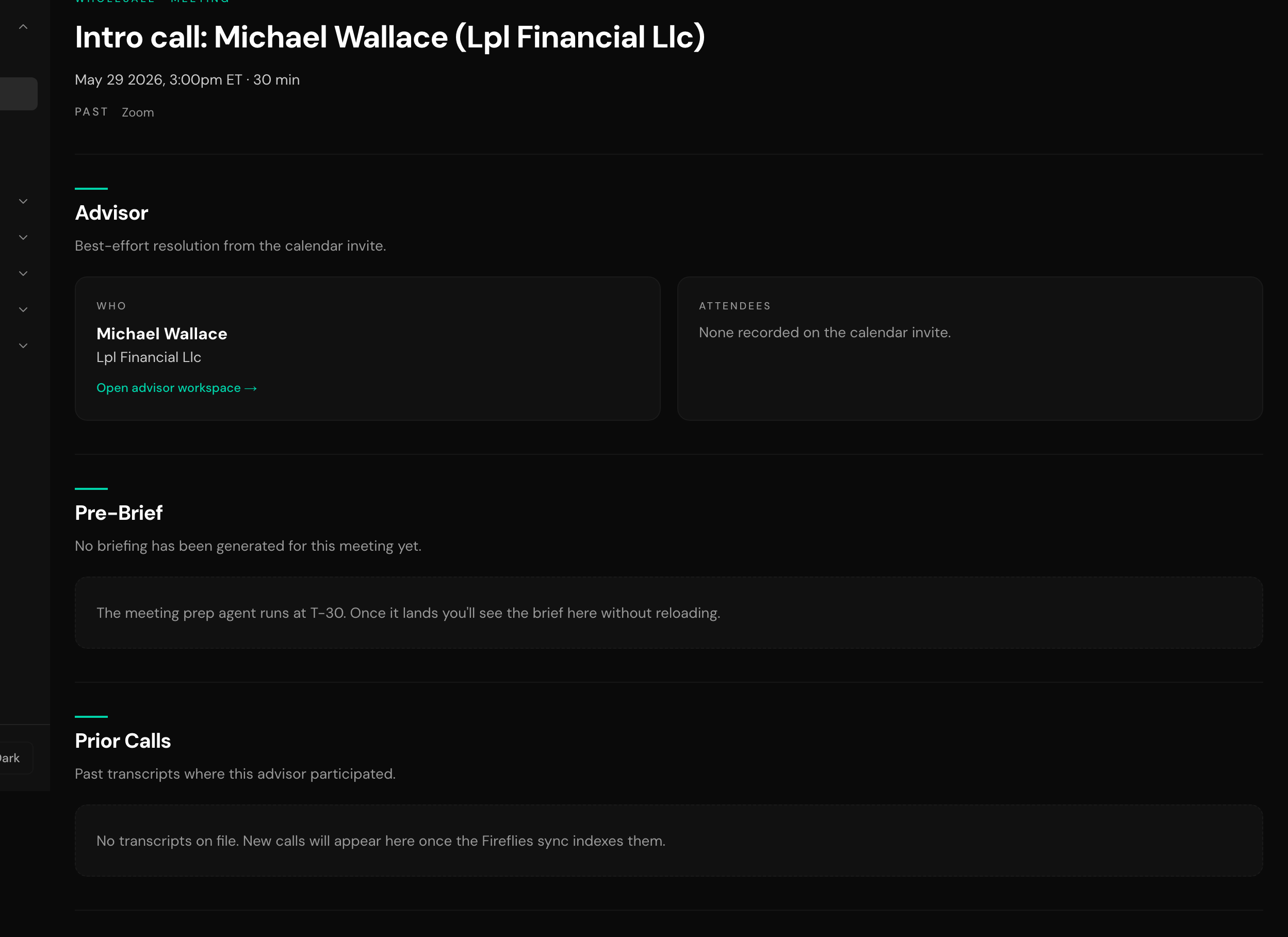
- Status Each meeting shows one of three states at a glance: Past, In Progress, or Upcoming.
- Who You Are Meeting The attendee is resolved straight from the calendar invite, with a link through to their full advisor workspace if you want the deeper record.
- The Pre-Brief The same brief the Meeting Assistant emails or posts before the call: a short summary, recaps of your prior meetings with these people, deal risks, sourced context, objectives, key questions, talking points, items to confirm, a summary of the email correspondence, what to focus on with each attendee, and the numbered sources behind the facts. A section with nothing to say is left out.
- Prior-Call History Past calls with this advisor: synced call transcripts, plus the post-meeting report for every call your connected meeting recorder (Fireflies, Granola, or AskElephant) captured, so you see what was actually said and agreed.
The pre-brief is generated by the Meeting Assistant about thirty minutes before the meeting starts (your firm can change the lead time). Until then the section says when to expect it. The page does not update by itself, so refresh it after that time to see the brief. To prepare for a call, open it from the meetings list once the brief is in and read it top to bottom. See the Meeting Assistant agent docs for how the brief is built and how to ask for one from Slack.
Writing the Follow-Up
The follow-up form lives in the same workspace, ready as soon as the call ends. You do not write the email. You write a sentence or two about what happened, and Alpheous drafts the rest.
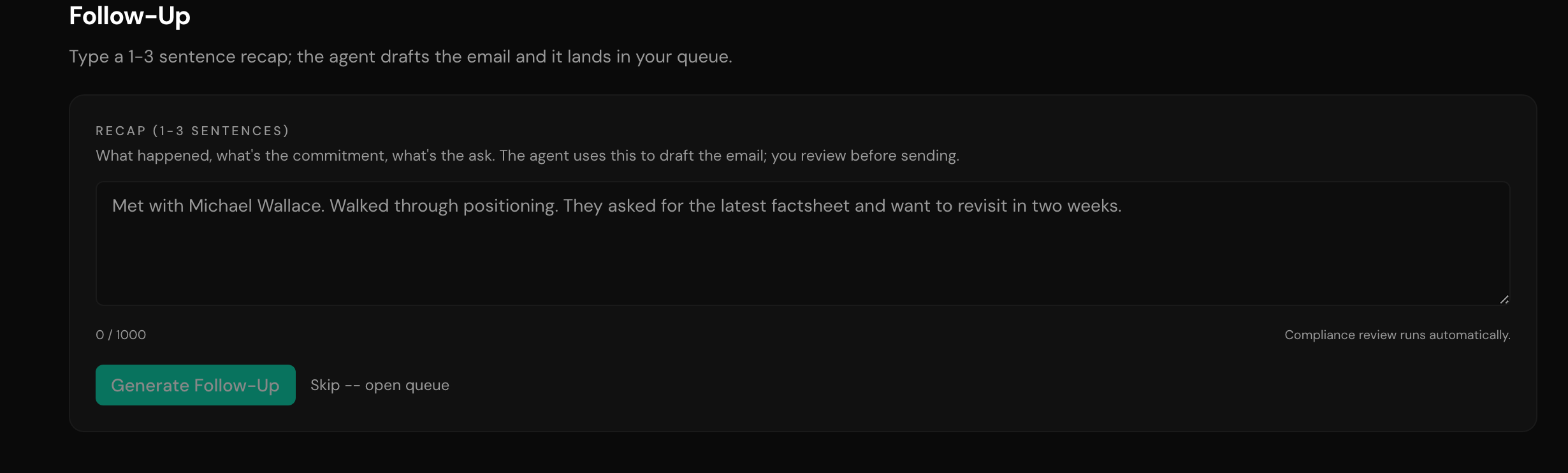
- Type a Quick Recap Enter one to three sentences on how the call went and what you committed to.
- Compliance Check Every follow-up runs through an automatic compliance review before it reaches your queue.
- The Drafted Follow-Up A compliance-checked draft lands in your queue for you to review, or use the "Skip: Open Queue" link if you would rather go straight to the queue than wait for it.
If the calendar invite for a meeting does not resolve to a known advisor, the follow-up form is blocked, and you will see a message that drafting requires a linked HubSpot contact. Link the contact first, then come back to write the follow-up.
To send a follow-up, type your recap and wait for the draft to come back. It lands in your queue on Outreach, where you review it like any other drafted work: approve it as written, edit the wording, or decline it. Nothing goes to the advisor until you approve it.
Related
- Meeting Assistant: the agent behind your pre-briefs and your follow-up drafts.
- Today: where today's meetings surface first thing each morning.
- Getting Started: the watch, draft, approve model these workflows follow.