People
People covers everyone at your firm who works alongside Alpheous: the staff roster, who is eligible for personal inbox coverage, and which senders your agents already recognize as belonging to your own firm.
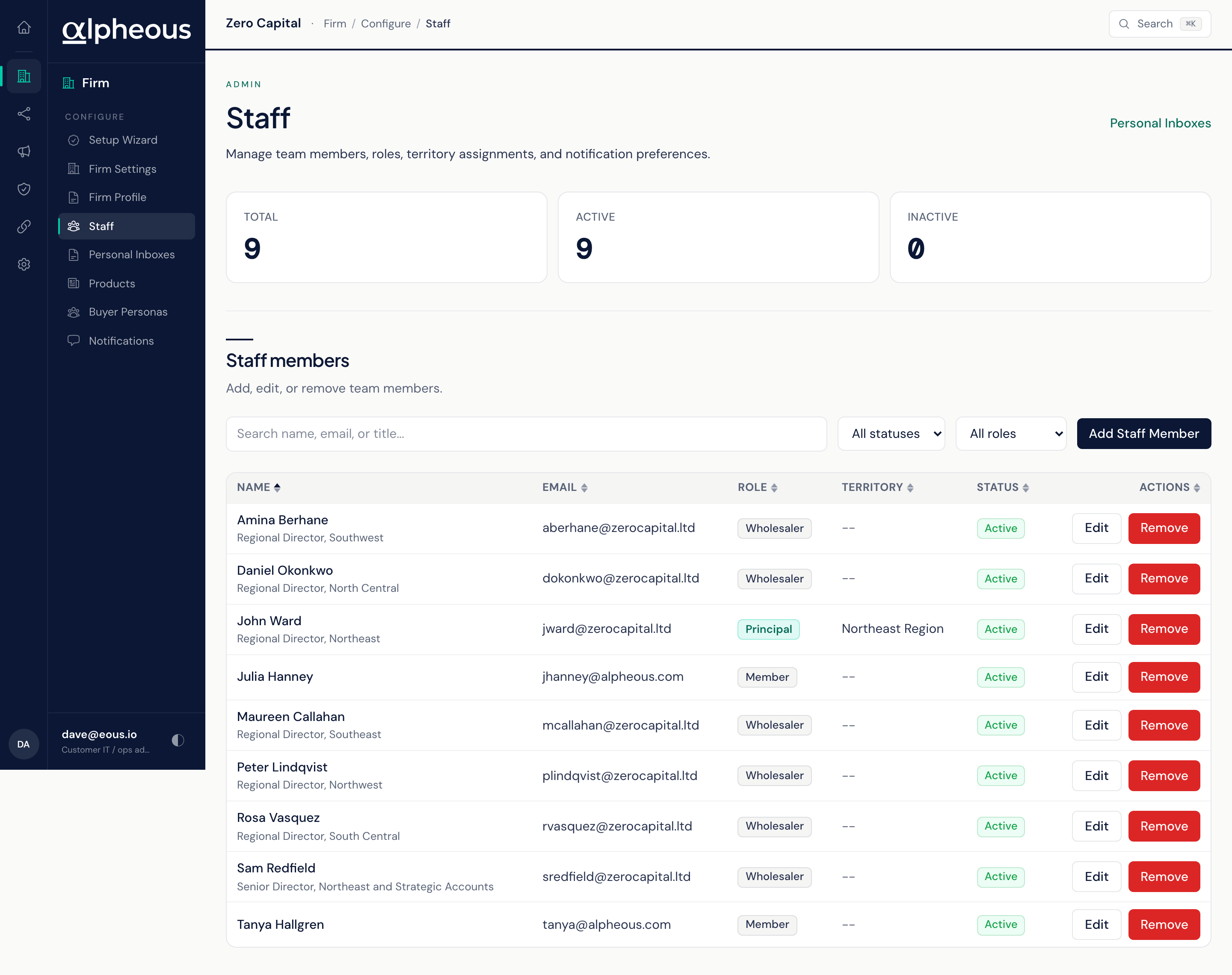
The Staff Roster
The roster is your team, one row per person, with Name, Email, Role, Territory, and Status. You can search by name or email, and filter by status or role. A glance band shows your Total, Active, and Inactive headcounts.
Adding or editing someone opens a form split into three tabs: Profile, Notifications, and Assignments. The Profile tab covers their identity and how work reaches them: Display name, Email, Title, Department, Role (which controls what they can see; it does not decide who receives the daily brief), Phone, Timezone (recorded on their profile; it does not change when the daily brief goes out, which is one time for the whole firm), LinkedIn URL, their Slack user ID (needed to message them directly), their HubSpot owner ID (drives contact ownership and sync), the calendar address used to pull their meetings, and the Agentmail inbox Alpheous monitors for their inbound advisor mail. It also covers their coverage: Territory, the funds they're licensed to discuss, how many days out their default task due dates fall, and whether the prospecting agent should automatically surface new leads for them.
Two flags matter beyond the basics. Marking someone as your firm's principal or owner sets them as the default persona used elsewhere in the console. Marking someone as able to approve proposals lets them sign off on proposals waiting for approval.
The Notifications tab has ten toggles, one per notification a person can receive: Meeting prep brief, Post-call follow-up, Daily targets, Trigger events, Compliance alerts, End-of-day digest, Outbound drafts, Escalation calls, Signal desk hot firm, and Daily brief. Nothing is sent to someone until you turn it on for them, so a new hire won't get paged before you mean them to.
Daily brief is how a person joins the morning brief. It is off for everyone to start with, and turning it on requires admin configuration access. It works together with the firm-wide Morning Team Brief switch on Notifications: the firm switch decides whether the brief goes out at all and on which channel, and this toggle decides who receives it. A person gets the brief only when both are on.
Two things the profile does not decide for the pre-meeting brief. Role does not choose who receives it: every person from your firm on the meeting who has Meeting prep brief switched on gets it. Timezone does not schedule it: the brief goes out a set number of minutes before each meeting starts, whatever the reader's timezone.
Personal Inboxes
Personal Inboxes shows which staff are eligible to have their own inbox watched. Eligibility follows role: admin, principal, wholesaler, and analyst roles qualify. This page is read-only: it tells you who is eligible, with a count and a table of Name, Email, Role, Territory, and Status; you don't turn triage on for a specific inbox from here. It links back to the Staff roster and the roster links here in turn.
Known Senders
Known Senders isn't part of the console's regular navigation: the list is learned automatically as your agents see mail come in, so there's normally nothing here for you to manage. It's the list of email addresses and whole domains your agents already recognize as belonging to your firm, which sharpens how inbound mail gets classified. For the times you do want to reach it yourself, you can add entries in bulk, separated by new lines, commas, or semicolons, and a Clear All action removes every entry at once after you confirm.
Related
- Firm Settings: your firm identity, which pairs with the roster to route work correctly.
- Setup Wizard: where Team Members first gets configured during initial setup.
- Connections: where the Slack, calendar, and CRM accounts referenced on a person's profile get connected.