Notifications
Notifications shows every alert and digest Alpheous can send, grouped by how it's triggered, and whether each one is actually firing. It is also where you switch the morning brief on or off for the whole firm and choose how it is delivered.
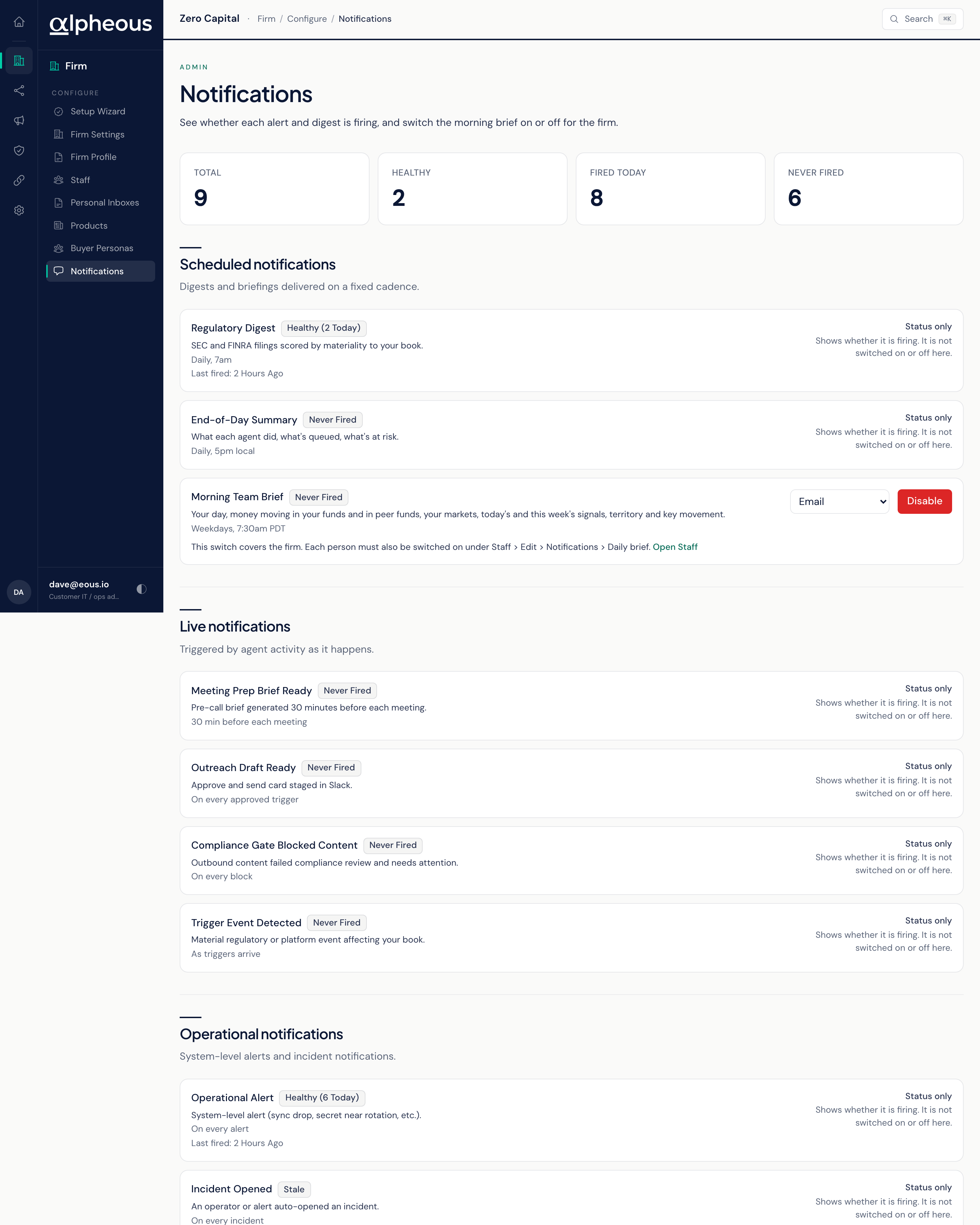
A glance band shows the Total number of notification types, how many are Healthy, how many have Fired Today, and how many have Never Fired.
What's in the Catalogue
Notifications are grouped into three sections:
Scheduled, digests and briefings that go out on a fixed cadence:
- Regulatory Digest: daily at 7am, filings scored by how material they are.
- End-of-Day Summary: daily at 5pm local time, what each agent did, what's still queued, and what's at risk.
- Morning Team Brief: weekdays at 7:30am, by the time zone of the machine Alpheous runs on (the page shows the zone). One email with your day, money moving in your funds and in peer funds, your markets, today's and this week's signals, territory, and key movement.
Live, triggered by agent activity as it happens:
- Meeting Prep Brief Ready: 30 minutes before each meeting.
- Outreach Draft Ready: on every approved trigger, an approve-and-send card staged for you in Slack.
- Compliance Gate Blocked Content: every time a draft is blocked.
- Trigger Event Detected: as trigger events arrive.
Operational, system-level alerts:
- Operational Alert: on events such as a data sync failing or a connection nearing expiration.
- Incident Opened: whenever an incident is opened.
Reading Health
Each notification shows a health state: Healthy, Stale, Failing, or Never Fired, with when it last fired (shown in Eastern time).
Switching the Morning Brief On or Off
The Morning Team Brief is the one row with controls, because it is the one whose sender reads them:
- Enable / Disable turns the brief on or off for the whole firm. Disabled, nobody receives it.
- Channel is Email or Email and Slack. The brief always goes by email; Email and Slack adds a Slack direct message on top. Email and Slack is only offered when Slack is connected on your install. When it isn't, the row says why.
The firm switch does not pick who receives the brief. Each person must also have Daily brief turned on under People (Staff > Edit > Notifications). A person gets the brief only when both are on.
Every other row is Status only: it shows whether that notification is firing, but it is not switched on or off here. For most of them, who receives them is set by the per-person toggles under People.
Related
- Connections: where a missing connection behind a stale or failing notification usually needs fixing.
- People: the per-person notification toggles, including Daily brief, that decide who receives what.